Getting started
From empty campaign to first knock: universe, turf, canvass, invite, then door knocking.
For campaign adminsDoorLine is built around a simple sequence. Load the doors you care about, cut walkable turfs, attach each turf to a scheduled canvass, invite your team, then knock. Anyone on the campaign can open a canvass — you do not assign one person to one turf.
Create your campaign and sign in
On the public site, choose Join the free beta. You become the campaign owner. Canvassers sign in later with a one-time code texted to their phone — no passwords, no app store.
Build your address universe
Open Address Universe (owners only). Pick your ward from the map, draw a boundary, upload a KML, or import an address list. That set of doors is what every turf and canvass will draw from.
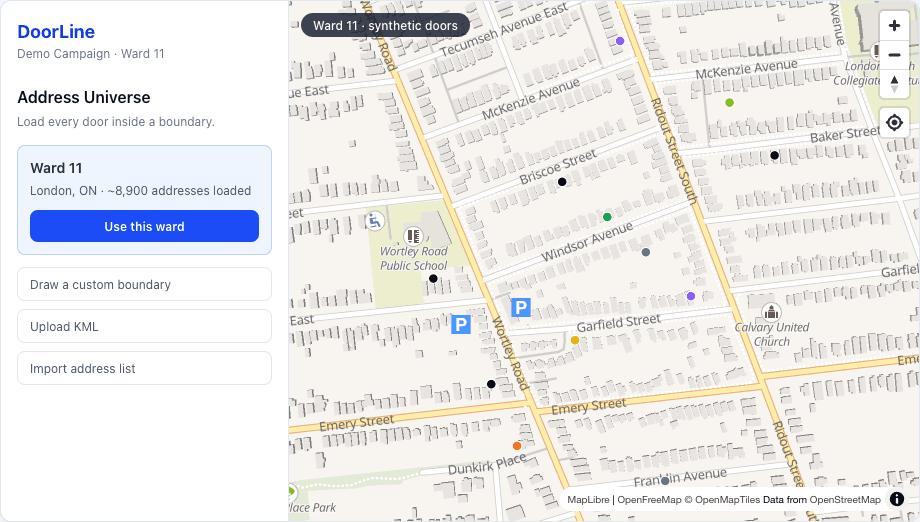
Full walkthrough: Address universe.
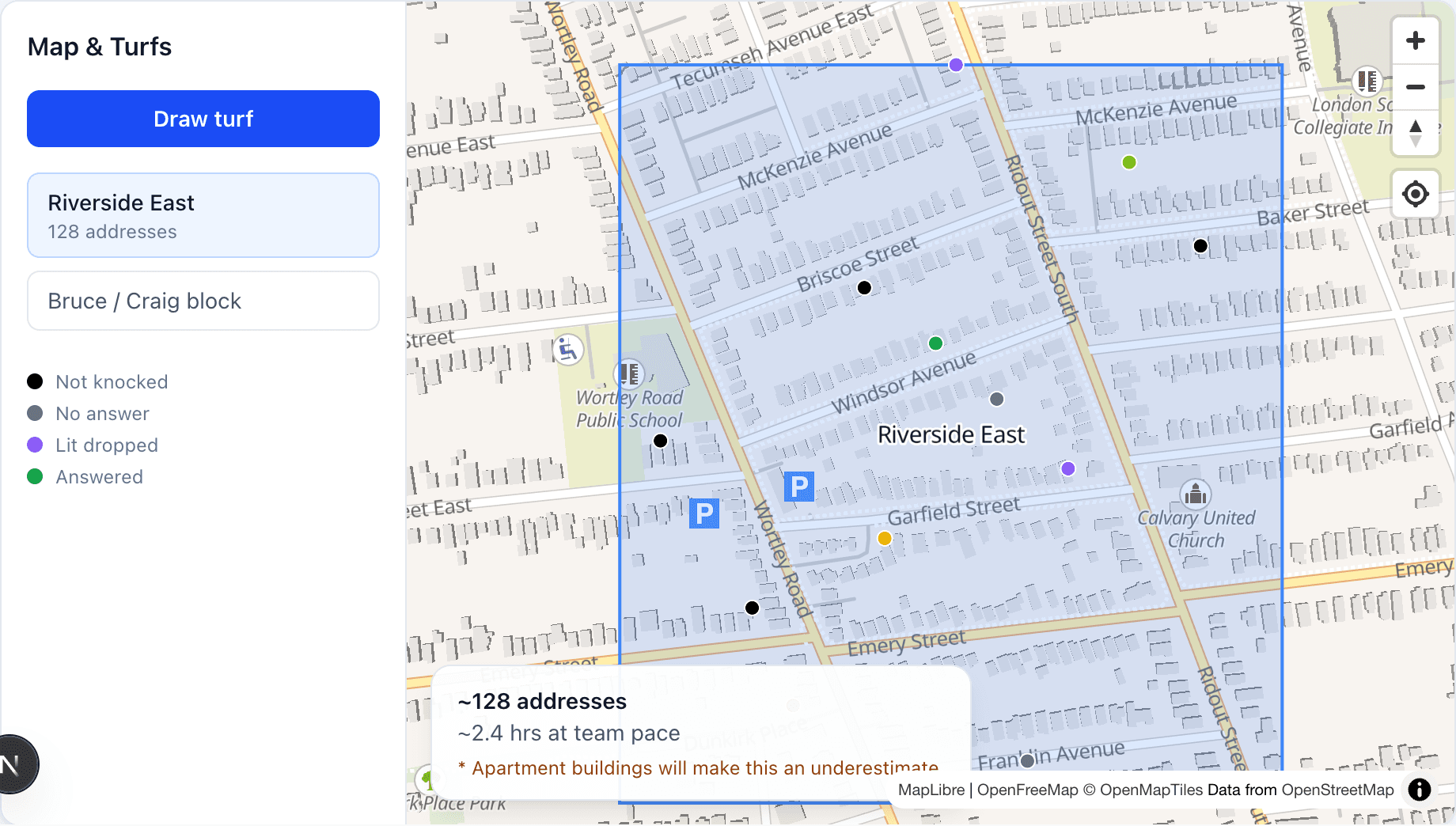
Cut your first turf
Go to Map & Turfs. Tap Draw turf, outline a walkable chunk, then name it. You will see an address count and an optional time estimate at team pace.
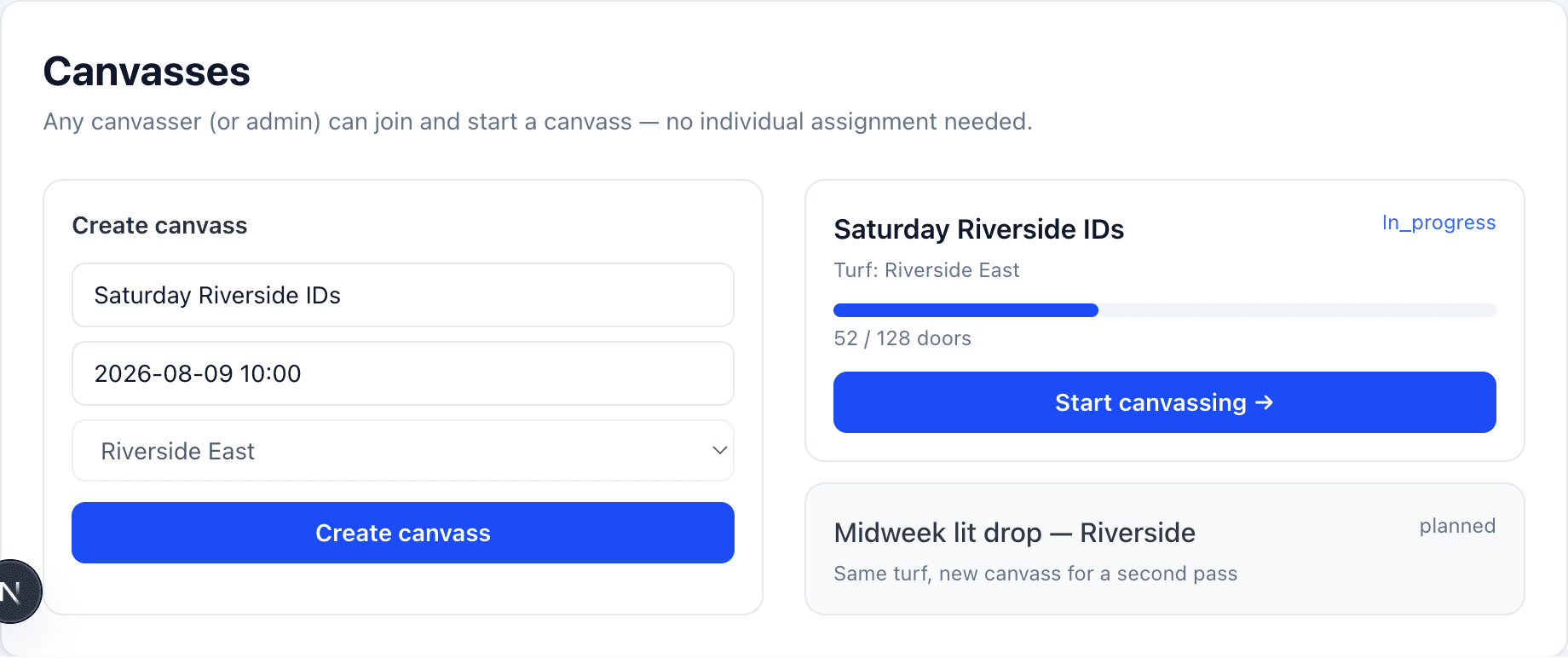
Create a canvass on that turf
On Canvasses, give the canvass a name, pick a date and time, and assign the turf. Status starts as planned. The whole team can open it — there is no “assign to Alex” step.
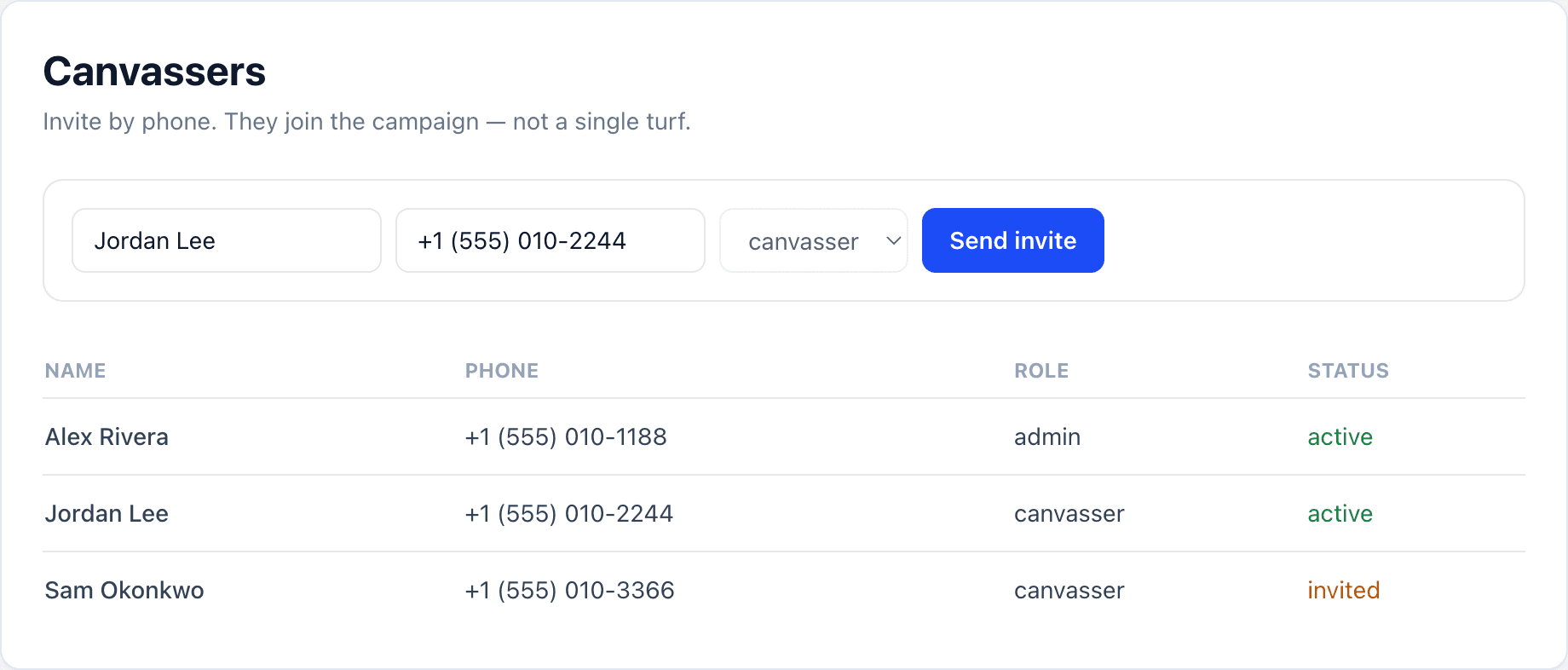
Invite canvassers
Under Users, invite by phone. They get a text, enter a one-time code, and land on the canvasser home screen. Open work is grouped by type (Signs, GOTV, Lit Drop, then door knocking). They can search, filter, and sort that list. Finished and stale canvasses stay off that list. Use Edit in Actions to change someone else's role or status.
Start knocking
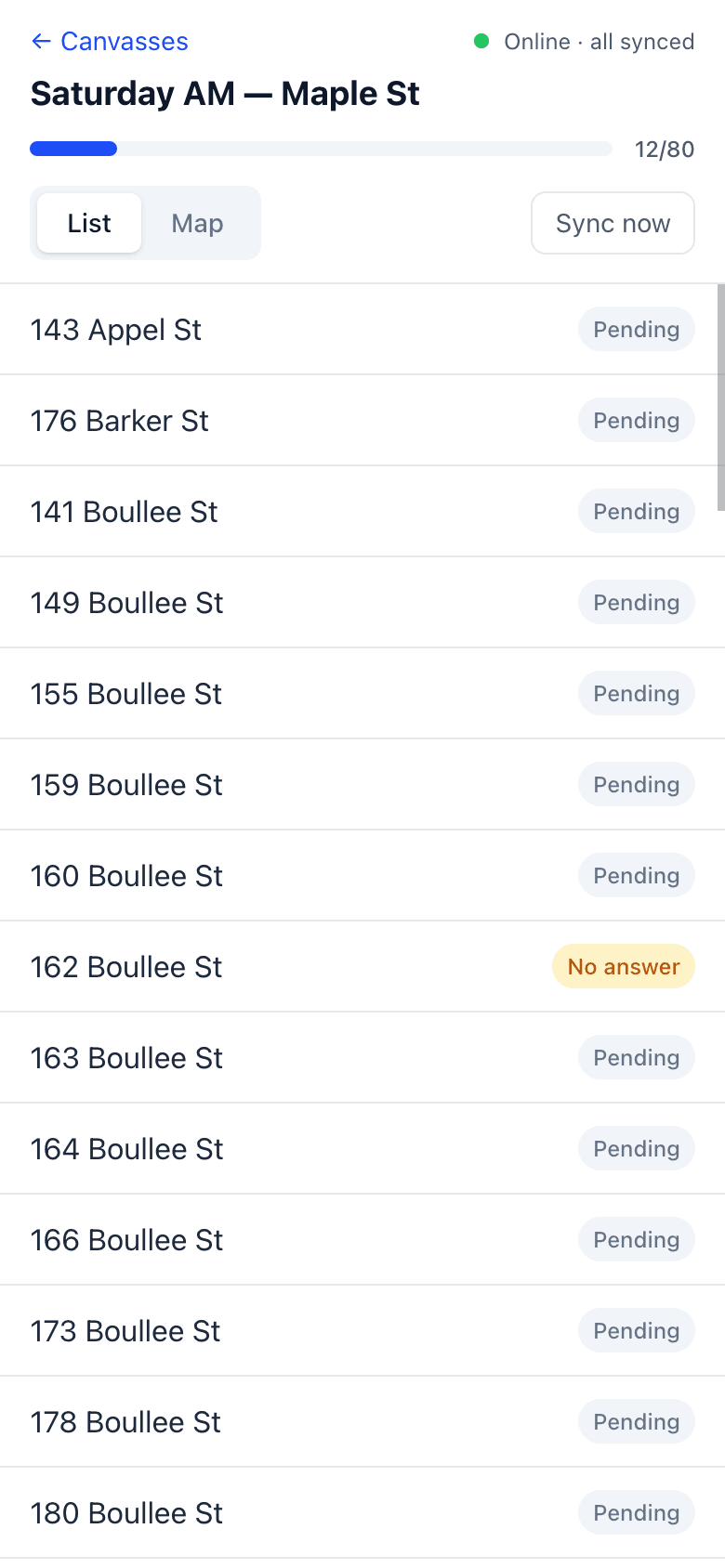
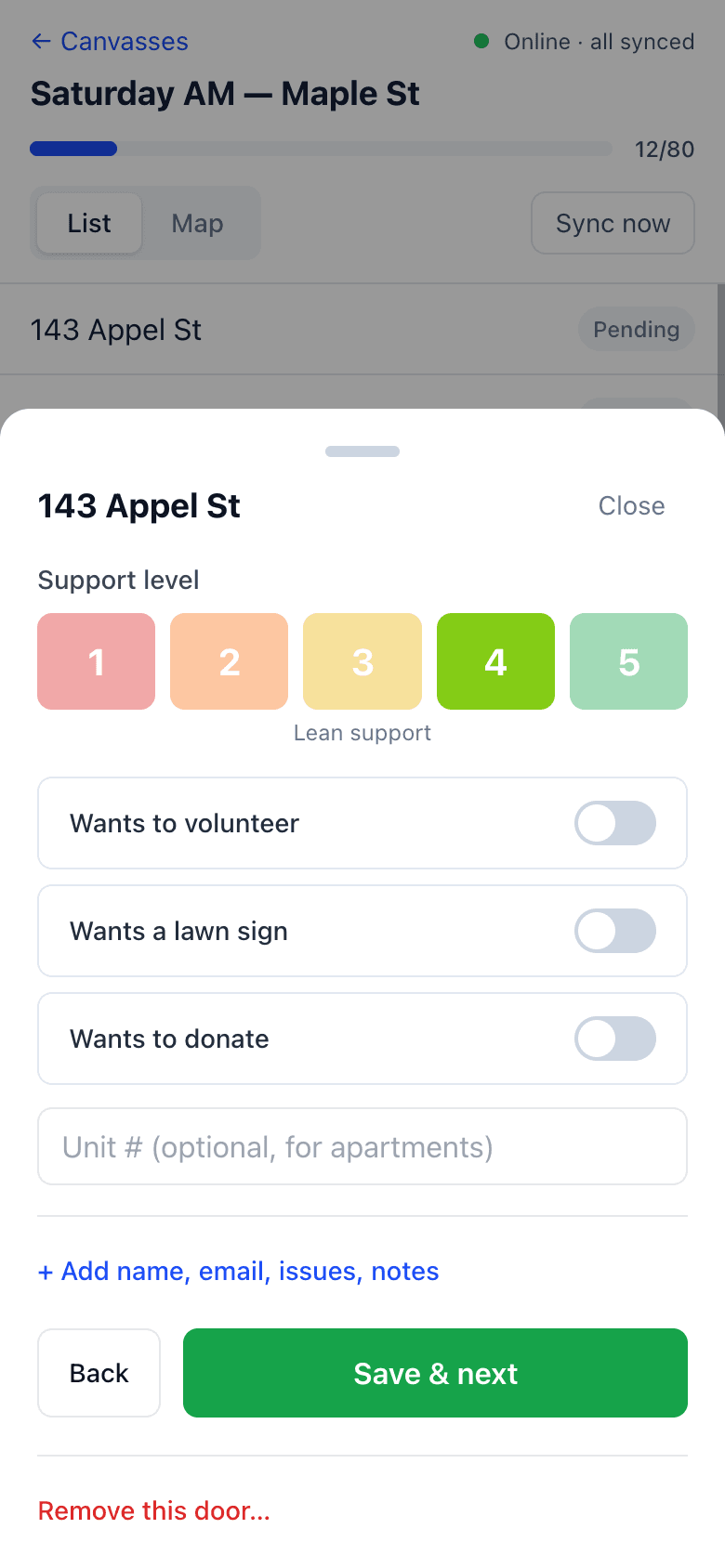
Switch to canvassing (or open /app). Pick a canvass → use List or Map → tap a door → choose No answer, Answered, or Literature dropped. Knocks save on the phone even without signal.
What to learn next
- Multi-unit buildings before an apartment blitz
- Custom questions so the form matches your script
- Paper & CSV import if you already have walk sheets
- Lit Drop for a targeted letter or warm-list pass across the ward