Canvasses
Attach a turf, schedule work, and re-canvass the same area for a second pass or new goal.
For campaign adminsTeam model — not one person per turf
In DoorLine, you attach a turf to a canvass. You can label a person on the card so a split piece is easy to find, but that is not a lock. Anyone with campaign access (canvasser or admin) can open it from /app and start knocking. Shared progress updates for the whole team — without exposing private voter notes on the map.
Open Canvasses
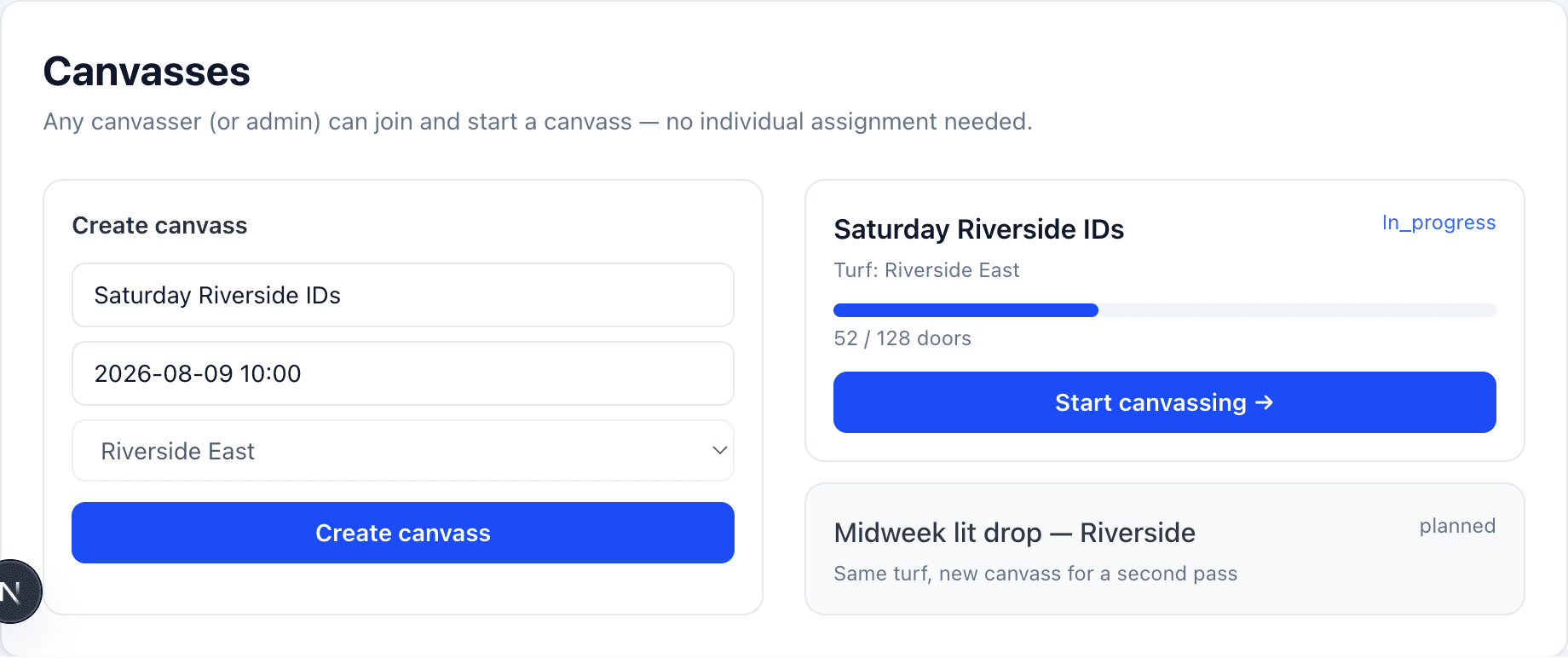
In admin, open Canvasses. You will see a create form and a list of existing work with progress bars.
Name, schedule, assign turf
Choose a clear name (“Saturday Riverside IDs”), a datetime, and the turf. Save. Captains can also create a canvass from the turf-naming dialog on Map & Turfs.
Invite people separately
Team membership lives under Canvassers. Invite by phone; they will see every canvass that has a turf.
Rename & label a person
On any canvass, click the pencil beside the name to rename it. A person dropdown labels the piece with someone on the campaign — useful on a 1/7 split so each volunteer sees their name on the card. Use name copies that person's name onto the title if you want the canvass itself to be called that. Labeling is not a lock: anyone on the campaign can still open it and knock.
Statuses & progress
Each canvass moves through:
- planned — scheduled, not started
- in_progress — someone is knocking
- complete — marked done
- unfinished — stopped short of the turf
Progress bars show doors done vs total on that turf. The coverage map frames those same pieces and writes the door count on each polygon. From the list, Start canvassing jumps straight into the field UI.
Search, filters, and auto-hide
At the top of Canvasses: We auto-hide canvasses that are at least X% complete and Y days old. Change those numbers if your crew leaves lists open for a long time. The rule is checked when a page loads — nothing is written overnight.
Search the list by name or turf. Filter to On phones or Hidden, by kind, or by completeness (under 50%, 75%, or 90%) so a long archive does not bury the work still out.
A Hidden · auto pill means the threshold already took it off phones. It is still open — not complete. From the ⋯ menu, Show to canvassers pins it back on volunteer phones. On phones · kept means you did that. Hidden is a hide you set yourself. Hidden · done is a complete canvass.
Print a walk sheet
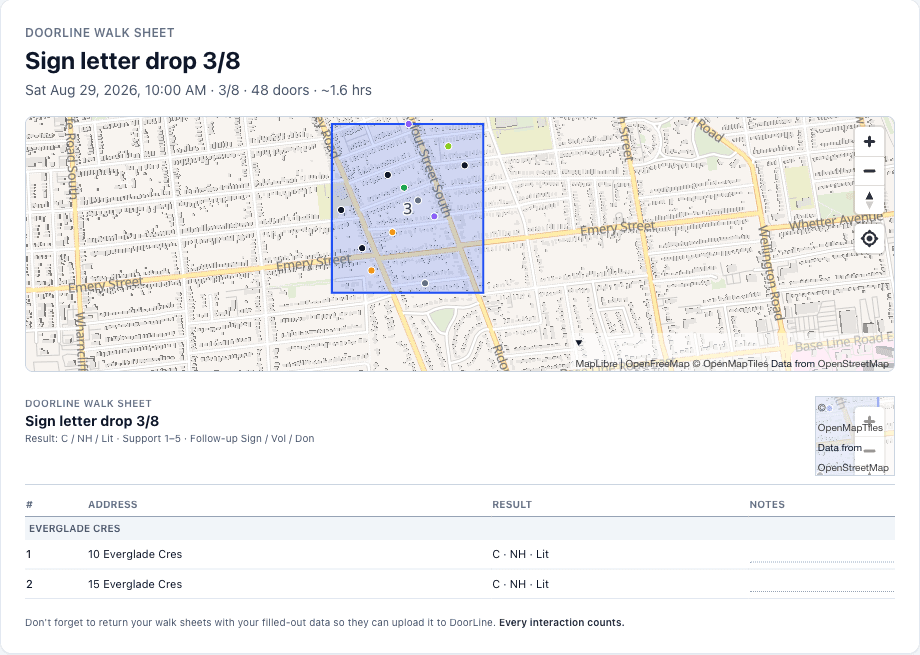
Every canvass has Print sheet (tiny orange New on the button) — a DoorLine walk sheet with a full-page map on the front, a small map on every address page, result (C / NH / Lit), support 1–5, Sign / Vol / Don, and notes. Paper crews fill it in the same street order as the app. The footer asks them to return filled sheets so the data can be uploaded to DoorLine.
Photograph completed sheets in Manual Input.
Split into N (and undo)
A large turf or a ward-wide list can be split into several canvasses. Split keeps whole streets together, balances door counts, and draws non-overlapping pieces. The original canvass stays; new pieces appear on this page.
Changed your mind? Open the ⋯ menu on any piece and choose Undo split. You see exactly what will happen before you confirm: the pieces are deleted, and any doors already knocked on them move back to the original canvass. If the pieces were built directly as a list (a Lit Drop or GOTV split), they merge into one new canvass instead. Nothing knocked is ever lost.
Hide, bulk-mark, and the ⋯ menu
Every canvass row has a ⋯ menu with admin-only tools:
- Hide from canvassers / Show to canvassers — take a canvass off volunteer phones without changing its status, or put it back. Show also works on a Hidden · auto row: the list stays open, and it returns to phones. Allow auto-hide again if you want the threshold to apply later.
- Drop remaining, complete, and hide — leftover doors become Lit dropped (ID and Lit Drop canvasses), the canvass is marked complete, and it leaves volunteer phones. On a split, do that for every piece in one tap. Signs and GOTV skip the drop step and only complete + hide.
- Mark all unattempted doors as Lit dropped (or No answer) — for data parties where someone typed in only the doors that answered from a paper sheet. Every door with no record gets one, so coverage and the vote model reflect what really happened. You see the door count before it runs. Use this when you still want the canvass open on phones.
- Undo split — see above.
Same turf, new canvass
Need a second pass? Create another canvass on the same turf with a new name and date. Keep the first canvass for history; do not delete the turf. Common patterns:
- Pass 1 — identify support and issues
- Pass 2 — literature drop on no-answers (same turf)
- Pass 3 — GOTV for strong supporters (use the dedicated GOTV page, which builds the list for you)
A sparse list of specific doors across the ward is Lit Drop, not a second polygon.